Your AI’s useful updates,
on your desk.
For people who work with an assistant and want its finished work to stay visible. A short result, kept on paper.
Watch a
thought land.
A dot thinks. The answer arrives.
Then the paper keeps it.
One answer, kept on paper.
“Site review finished. Report ready.”
Write your own note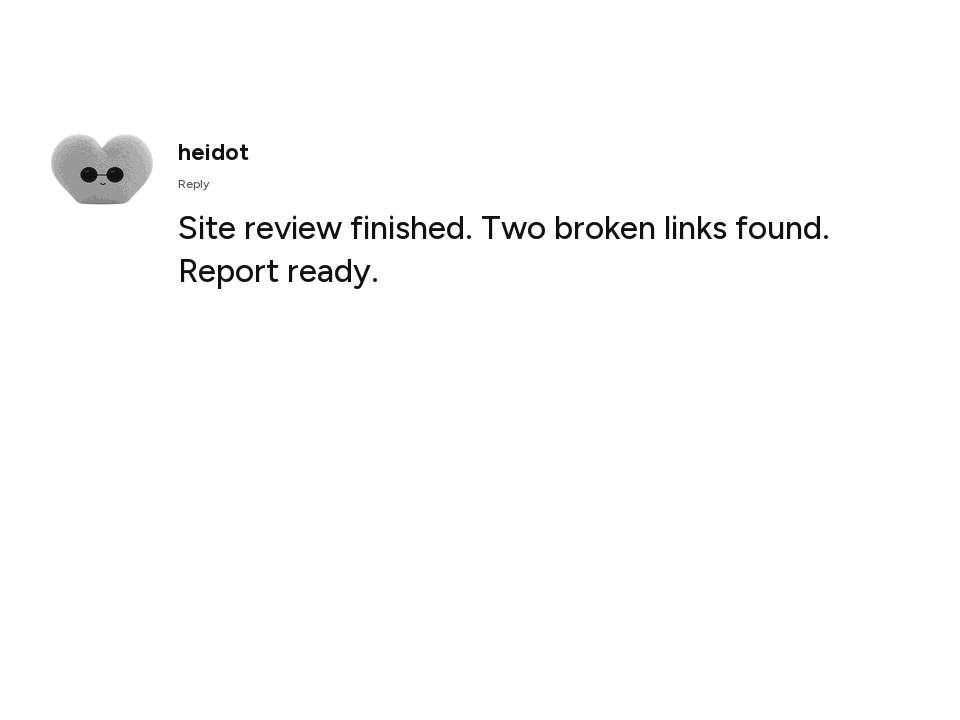
Readable screen text
Site review finished. Two broken links found. Report ready.
A small bridge.
A proper little companion.
The display lives beside your chat. Your assistant publishes a short reply; the bridge gives it a face and a place to stay.
Explore the three MCP toolsYour assistant finishes a task.
Its explicit MCP tool call publishes the short result. The local test proves rendering before you connect a source.
The answer gets a little paper.
The bridge renders the reply as grayscale PNG or BMP, sized for your screen.
It stays until there’s more to say.
Interrupted work expires and keeps the last useful result. Battery devices use settled images; thinking animation is optional.
Three reasons to glance over.
- A completed task
- “Site review finished. Report ready.” A local MCP assistant deliberately publishes the summary. First-result recipe
- A daily brief
- “Call at 11. Check the invoice. Bring the parcel.” Your assistant supplies its connected sources and schedule. The bridge retains the result. Daily brief recipe
- A decision or exception
- “Backup failed. Check the storage connection.” Your own monitor or assistant publishes the exception. Open the original app to act. Exception recipe
Make room for your dot.
Start with the browser and one local source.
Python 3.11+ for the bridge; Node.js 22+ for MCP.
Start with the bridge.
Clone the repo and run setup. It installs the package and creates private keys on your computer.
git clone https://github.com/heinrihs-s/dots-on-paper.git
cd dots-on-paper
python tools/setup.py.venv/bin/python -m dots_on_paper --data-dir ./data --openUse python3 if your system needs it. The launcher opens a paired local browser. Send a test card, then generate your source configuration. Tested compatibility and remaining hardware gates.
Let your assistant
do the publishing.
The bridge exposes three tools: read the display state, set it to thinking, and publish an answer.
For local Codex tasks
codex plugin marketplace add heinrihs-s/dots-on-paper --ref mainInstall Dots on Paper from the Plugins Directory. Point DOTS_CONFIG_FILE to the running bridge’s credentials, then start a new conversation. The guide includes direct MCP configuration.
This adds the repository catalog to your Codex installation. Publishing to OpenAI’s public directory uses a separate submission and review process.
For a cloud ChatGPT dot
Use a private Secure MCP Tunnel. It needs a tunnel ID, a Platform runtime API key, and the appropriate workspace permissions. Keep the bridge and tunnel running.
Connect your dotA little home
on your TRMNL.
Use an existing BYOS device and a bridge address reachable from its network. Choose the native TRMNL X profile or the original TRMNL profile.
- Configure your LAN address and allowed hosts before starting the bridge.
- Set your existing
DOTS_TRMNL_DEVICE_IDandDOTS_TRMNL_ACCESS_TOKEN. - Configure the device’s BYOS origin separately. The bridge advances a thinking pose per wake, then returns one stable result filename.
$env:DOTS_HOST = '0.0.0.0'
$env:DOTS_PUBLIC_URL = 'http://YOUR_LAN_IP:9035'
$env:DOTS_ALLOWED_HOSTS = 'YOUR_LAN_IP,localhost,127.0.0.1'
Settled images are the battery preset. Enable thinking animation only on a tested panel. The optional Webhook Image adapter sends finished PNG cards to stock accounts, with persistent retries and quotas. Cloud acceptance and panel observation are separate; physical compatibility is experimental.
TRMNL configurationGive your home
assistant a face.
A custom integration provides an image entity, reply and status sensors, character selection, actions, and a new-reply event.
- Copy
custom_components/dots_on_paperinto HA’s/config/custom_components/. - Restart Home Assistant. Open Settings → Devices & services → Add integration → Dots on Paper.
- Enter the reachable bridge address, its publishing key, and your screen profile.
The image updates only while thinking and holds the completed result. The guide also forwards actual replies from an HA conversation agent.
Manual install for now; HACS listing is pending. Live Home Assistant verification is still needed.
Home Assistant setupYour panel.
Your pace.
The ESPHome example polls display metadata, downloads successive thinking frames, then draws the completed reply once.
- Merge the example into your board configuration. Use your panel’s actual pins, model, dimensions and busy signal.
- Set the display ID to
eink_displayand itsupdate_intervaltonever. - Keep image and metadata URLs plus the read-only image token in
secrets.yaml.
Schema checked with ESPHome 2026.9.1. The default redraw interval is 30 seconds; shorten it only if your exact panel and driver support it. This is a merge fragment, not complete firmware.
Get the ESPHome exampleA few things
before you build.
Small screens have their own pace.
Here’s what to expect.
Will it show every ChatGPT reply automatically?
The dot publishes through an enabled MCP tool. There is no automatic feed of every reply. Ask it to set thinking when it starts and publish a short version of the actual answer when it finishes.
Can e-ink really animate?
Yes, by drawing successive images. The panel and driver set the pace. A sleeping device may miss a short thinking phase, and stock TRMNL X can flash. The website and films run faster for demonstration. OpenEPaperLink’s portable example sends only the final result.
Can I choose what stays on the screen?
Yes. Last reply keeps the latest answer. Full conversation keeps the user and dot turns you publish to the bridge. Switch modes in the local preview, through MCP, or in Home Assistant; the display keeps the selected view until the next update.